Blazin Presenter is a free, web-based multimedia editor that can do a lot more than standard slide presentations. You can build presentations, learning content, quizzes, digital signage, kiosk-style experiences, mini websites, and even SCORM-ready training projects. If you are just opening blazin presenter for the first time, the main thing you need is not every advanced feature at once. You need a clean mental map of the interface, what the menus do, and how projects actually work.
That is exactly what this guide covers. We will walk through blazin presenter as a practical tutorial, starting with the editor layout, then saving and exporting, then slides, elements, navigation, menus, and the built-in help system. By the end, you should be comfortable moving around and confident enough to start building.
Table of Contents
- Step 1: Understand what blazin presenter is and how projects are stored
- Step 2: Get comfortable with the editor layout
- Step 3: Save, load, and export your blazin presenter projects the right way
- Step 4: Start building with slides
- Step 5: Use undo, redo, and editing shortcuts
- Step 6: Add your first elements in blazin presenter
- Step 7: Use data elements for progress, score, and timing
- Step 8: Add interactive hotspots, images, lists, and animations
- Step 9: Build quizzes in blazin presenter
- Step 10: Add scrollers, shapes, audio streams, embeds, forms, and video streams
- Step 11: Manage fonts and use glyphs for visual variety
- Step 12: Customize your workspace with the layout menu
- Step 13: Control navigation with the global menu editor
- Step 14: Use preview and right-click shortcuts while you build
- Step 15: Learn the built-in help system, shortcuts, and token features
- Step 16: Understand where blazin presenter fits best
- FAQ
- Final thoughts
Step 1: Understand what Blazin Presenter is and how projects are stored
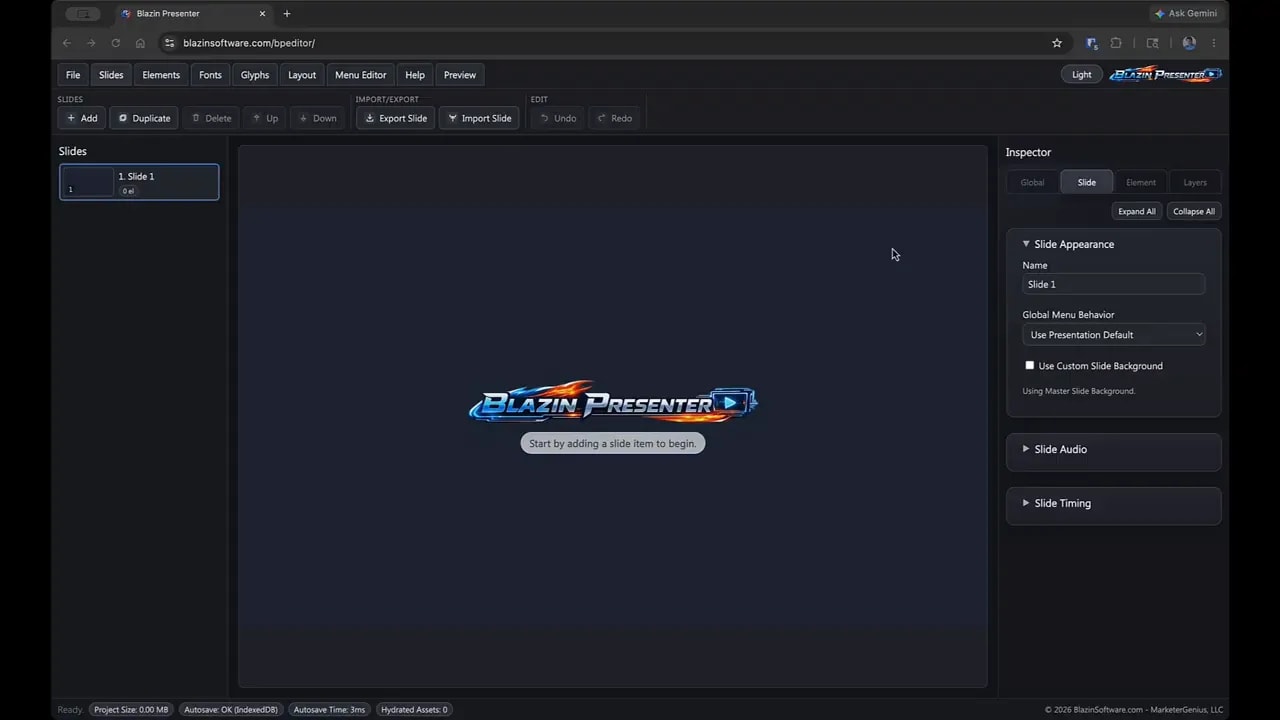
When you first open Blazin Presenter, the editor starts with a blank workspace and a prompt telling you to add a slide item to begin. Before doing that, it helps to understand one of the most important design choices in the platform.
Your work is local.
Projects are not saved online by default. Nothing is being stored on a remote account for you behind the scenes. When you save a project, blazin presenter downloads it to your own computer. That means:
- Your content stays yours.
- You can move projects between computers.
- You are responsible for saving actual project files, not just relying on the browser session.
That local-first approach is a big deal. As you add images, fonts, sounds, and other assets, blazin presenter bundles them together into a single project file. You can carry that file on a thumb drive, load it on another machine, and open it on Mac, Windows, or Linux in a modern browser.
Step 2: Get comfortable with the editor layout
The top of the blazin presenter editor is built around a menu system. The main menus include:
- File
- Slides
- Elements
- Fonts
- Glyphs
- Layout
- Menu Editor
- Help
- Preview
The workspace itself feels familiar if you have ever used presentation software before. You typically have a slide panel on the left, the main canvas in the center, and settings or inspectors on the right.
At the bottom, there is also a status bar that shows your projected project size. This becomes useful once you start adding media. If you keep projects mostly text-based and use built-in assets, they can stay very lightweight. Once you add more images, sounds, or custom resources, the size grows accordingly.
You will also notice auto-save. This only means the current state is saved in your browser locally. If the browser crashes and you reopen the editor, your work may still be there. That is helpful, but it is not the same as saving a downloadable project file to your computer.
Step 3: Save, load, and export your blazin presenter projects the right way
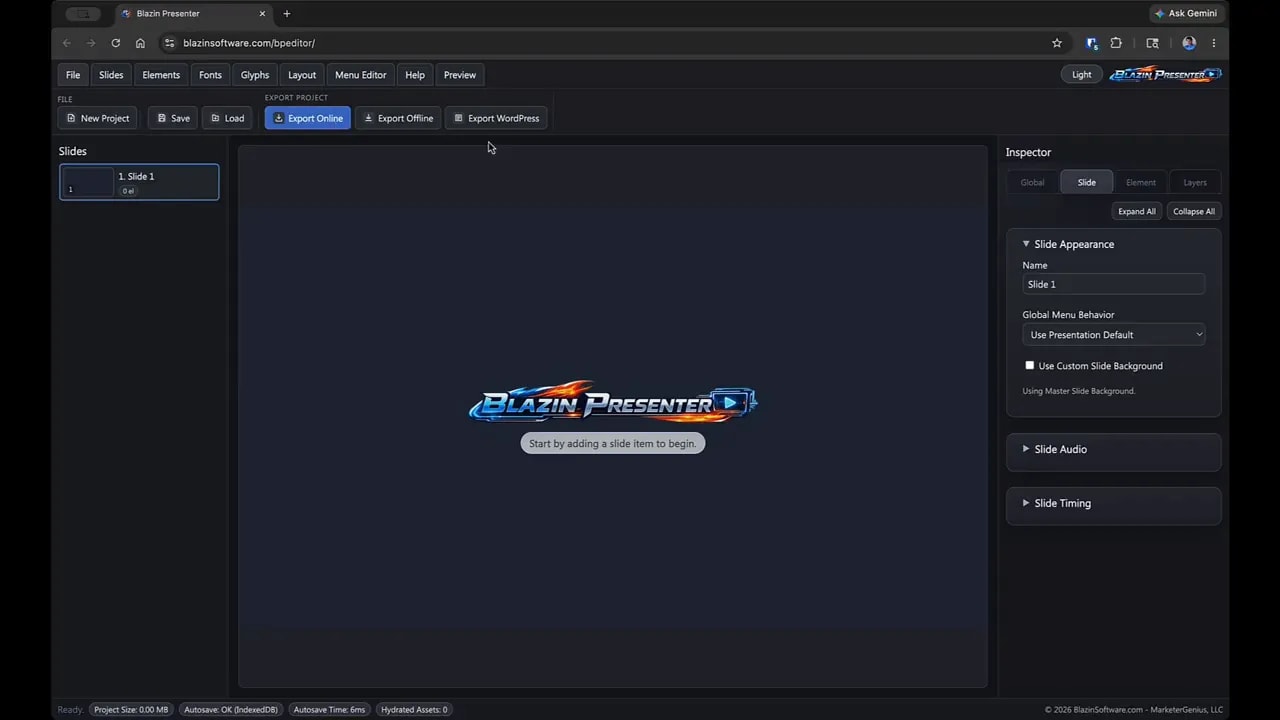
The File menu is where you handle the basics:
- Create a new project
- Save the current project
- Load an existing project
Once you start building, save early and save often. In blazin presenter, that means downloading the project file.
Export options in blazin presenter
Blazin presenter includes several export paths, each meant for a different use case.
Export Online
This creates a self-contained website package. You get an index file, runtime files, and all required assets bundled into a zip. After unzipping, you can upload it to a web host and run the project online like a mini website, landing page, or interactive presentation.
Export Offline
This also creates a bundled HTML-based output, but it is prepared differently so it can run locally from a computer without browser security issues getting in the way. Some assets are converted behind the scenes to make that possible, which makes the final package somewhat larger. The upside is that someone can open the zip contents, double-click index.html, and run the presentation through a browser without installing anything special.
Export WordPress
If you use the Blazin Player WordPress plugin, this export is specialized for that environment. It leaves out runtime files that the site already provides, which saves storage space and improves bandwidth usage when you host multiple blazin presenter projects on one site.
SCORM Export
In the SCORM version of blazin presenter, there is also an export option for SCORM 1.2. That allows projects to be uploaded to LMS platforms for tracking quiz scores, progress, time spent, and completion data.
Step 4: Start building with slides
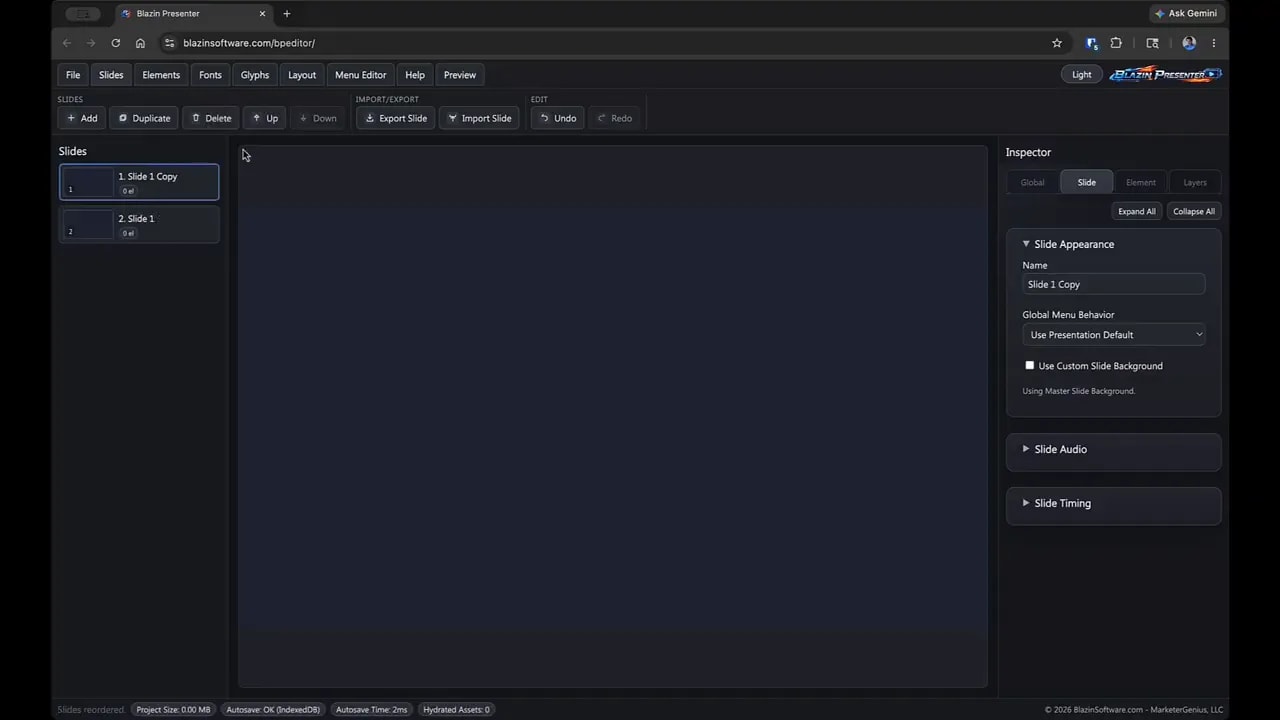
The Slides menu is exactly where you would expect to do your basic structure work. You can:
- Add slides
- Duplicate slides
- Delete slides
- Move slides up and down
- Drag and drop slides into a new order
Once you add your first slide, the blank startup message goes away and the project officially begins.
There is also a timeline view available. This can be very handy in larger blazin presenter projects with lots of slides. If you are working with 20, 50, or more slides, the timeline gives you another quick way to drag slides around without scrolling the left panel endlessly.
You can also export and import individual slides. That is a useful feature if you build a title slide, logo screen, reusable intro, or quiz screen that you want to use in multiple projects.
Step 5: Use undo, redo, and editing shortcuts
Blazin presenter supports standard editing behavior, including:
- Undo with Command+Z on Mac or Control+Z on PC
- Redo with Command+Y on Mac or Control+Y on PC
- Duplicate in place with Command+D or Control+D
- Copy and paste with standard keyboard shortcuts
The editor keeps a recent history of actions, which makes experimenting much easier. That matters because blazin presenter gives you a lot of control, and sometimes the fastest way to learn a tool is simply to try something, preview it, and undo it if needed.
Step 6: Add your first elements in blazin presenter
The Elements menu is where most of your real building happens. This is the heart of blazin presenter.
Here is a practical rundown of the main element types.
Text and Rich Text
Text is what you will use for most headings, labels, and regular on-screen text. It supports styling, shadows, outlines, and effects.
Rich Text is better for larger blocks of content. It includes a text editor and is meant for longer-form material where simple text boxes are not enough.
Audio
The Audio element inserts an audio player and lets you upload audio files such as MP3s. It also supports APAC, a custom encrypted audio format designed as a deterrent against easy file extraction.
Buttons
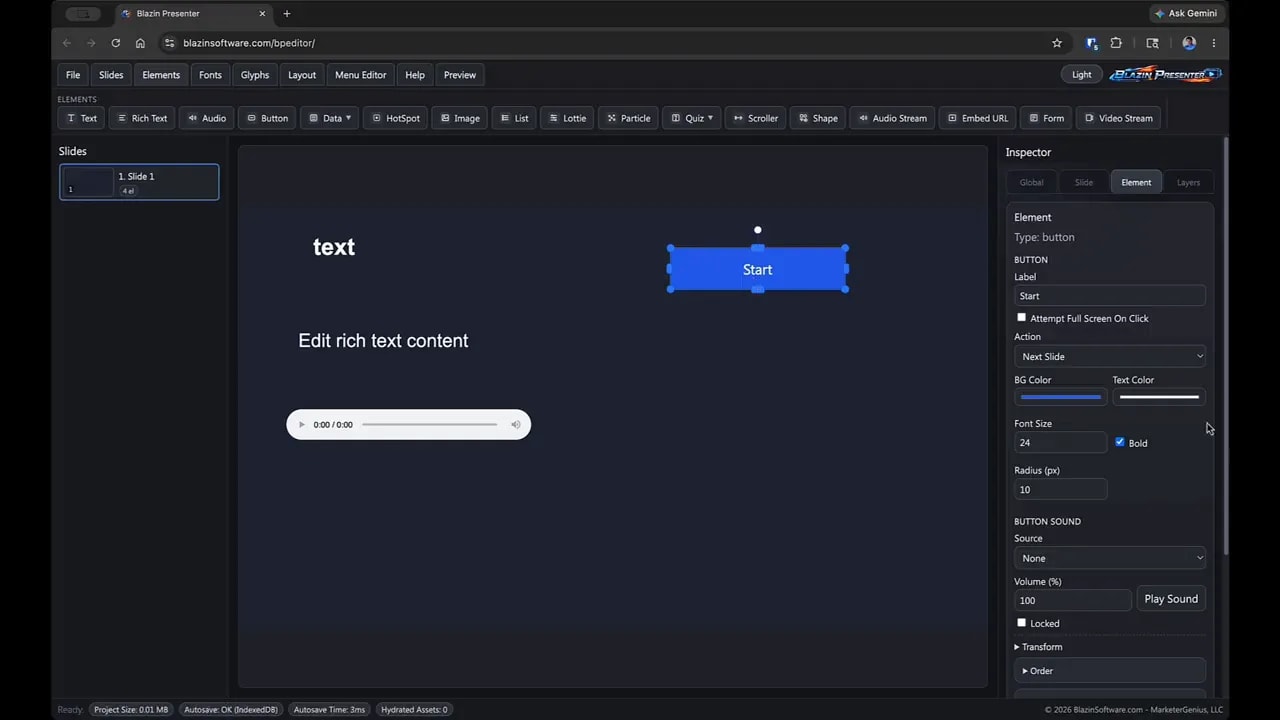
Buttons are more powerful than they first appear. A button in blazin presenter can:
- Go to the next slide
- Go to the previous slide
- Jump to a specific slide
- Open a website
- Play a sound
- Attempt to trigger full screen mode
The full screen option is especially useful for kiosk-style or presentation-style experiences. Browser behavior varies, so no browser feature is universal all the time, but blazin presenter gives you the option when possible.
Step 7: Use data elements for progress, score, and timing
Under the data-related elements in blazin presenter, you get tools that are especially useful for educational content and structured presentations.
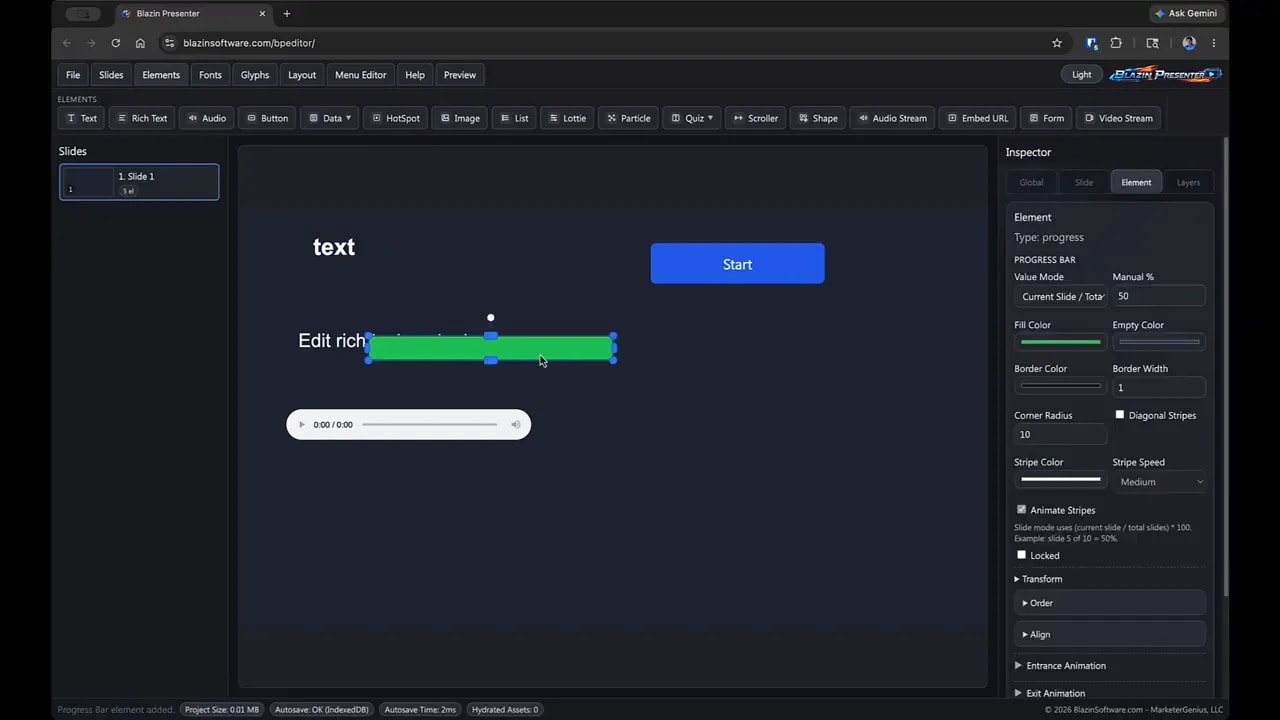
Progress Bar
A progress bar can automatically calculate position based on slide order. If you are on slide 1 of 4, it displays 25%. You can also switch to manual mode and enter any percentage yourself.
Score
The score element displays quiz performance. You can show current score, number answered, and related information. It updates based on quizzes across the project.
Timer
The timer can be purely visual, or it can trigger actions when it completes. You can use it to:
- Count down for an assignment or reading period
- Advance to the next slide automatically
- Jump to a specified slide
- Play a sound when time runs out
Step 8: Add interactive hotspots, images, lists, and animations
Hotspots
Hotspots are invisible clickable areas that sit on top of other content. In the editor they appear as visible overlays so you can position them, but at runtime they are hidden. They can trigger slide changes, websites, or full screen attempts, just like buttons.
This makes hotspots ideal when you want different parts of an image to be interactive.
Images
The image element does exactly what it should. Upload images, place them on the canvas, rotate them, scale them, align them, and style them. Right-click options also help with alignment and transform resets.
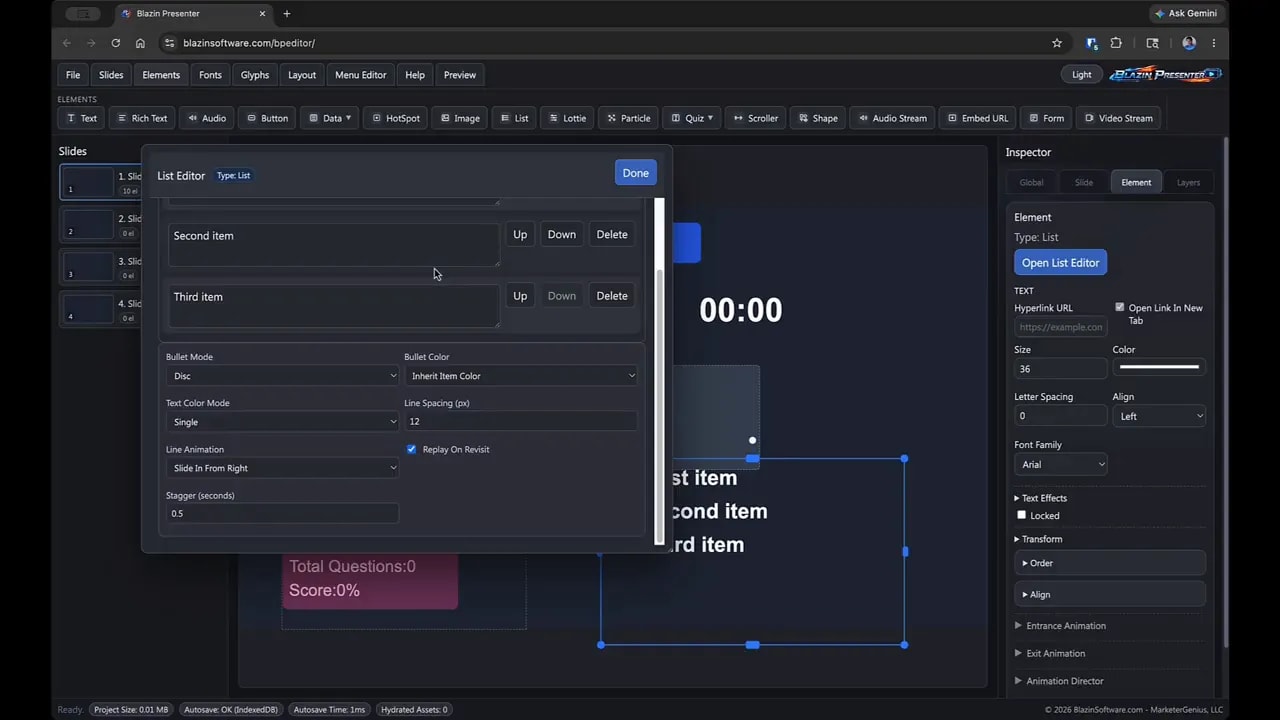
Lists
Lists support multiple items and can be animated. Blazin presenter allows you to build list reveals with entry effects, including styles like slide-in motions and impact-style appearances.
Lottie Animations
Lottie support is built in, which means you can use lightweight animated assets. You can control playback speed, autoplay, and looping. If you need animations for education or business content, free assets from LottieFiles are a useful resource.
Particles
Particle effects are there to add visual energy. You can adjust speed, color, and quantity, and even use multiple particle systems on one slide.
Step 9: Build quizzes in blazin presenter
This is one of the strongest areas in blazin presenter. The platform includes built-in quiz types, and score tracking works even outside the SCORM edition. The SCORM version is only needed when you want that data reported to an LMS.
There are four quiz types:
- Audio Match
- Fill in the Blank
- Image Quiz
- Multiple Choice
Important: you can only place one quiz per slide.
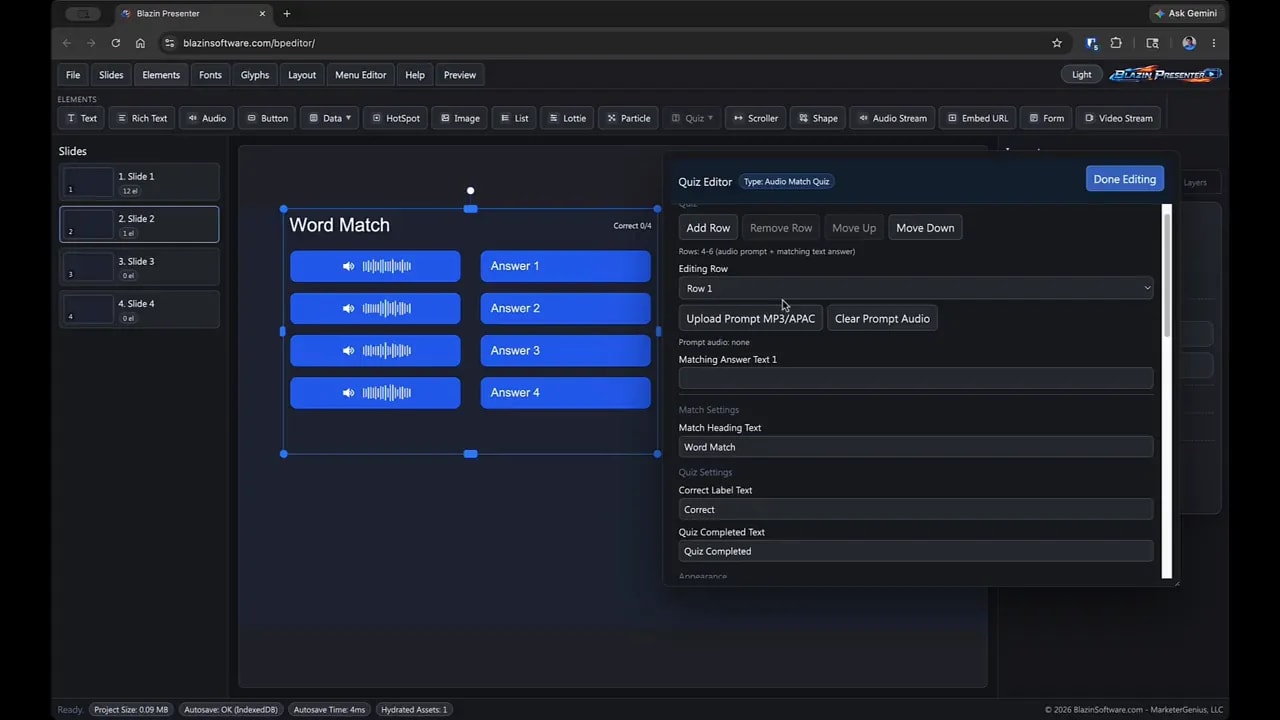
Audio Match Quiz
This is especially useful for language learning. You upload several audio clips and pair them with the correct text answers. At runtime, answers are shuffled so the layout is not predictable.
Fill in the Blank
You enter a sentence with blank positions and define the correct answer choices. Blazin presenter tracks whether responses are correct and can advance automatically when the quiz is complete.
Image Quiz
You upload an image and provide possible answer choices. This can work for vocabulary, object recognition, diagrams, and labeled visuals.
Multiple Choice
Multiple choice quizzes can contain multiple sections. A user answers one question, then moves through the next section, and finishes on a completion screen. Scores are tracked across all quiz slides and sections in the project.
You can also configure quiz behavior such as:
- Auto-advance on completion
- Disable navigation
- Lock quizzes after completion
- Allow or prevent revisiting previous content
Step 10: Add scrollers, shapes, audio streams, embeds, forms, and video streams
Blazin presenter is not limited to ordinary presentation objects. It includes several elements that make it useful for signage, web content, and interactive projects.
Scroller
The scroller element displays moving text across the screen. This is excellent for digital signage. You can control speed, direction, looping, and whether items wait for the previous item or follow immediately.
Shapes
The shapes library gives you quick built-in visual components when you need something simple without hunting down external graphics.
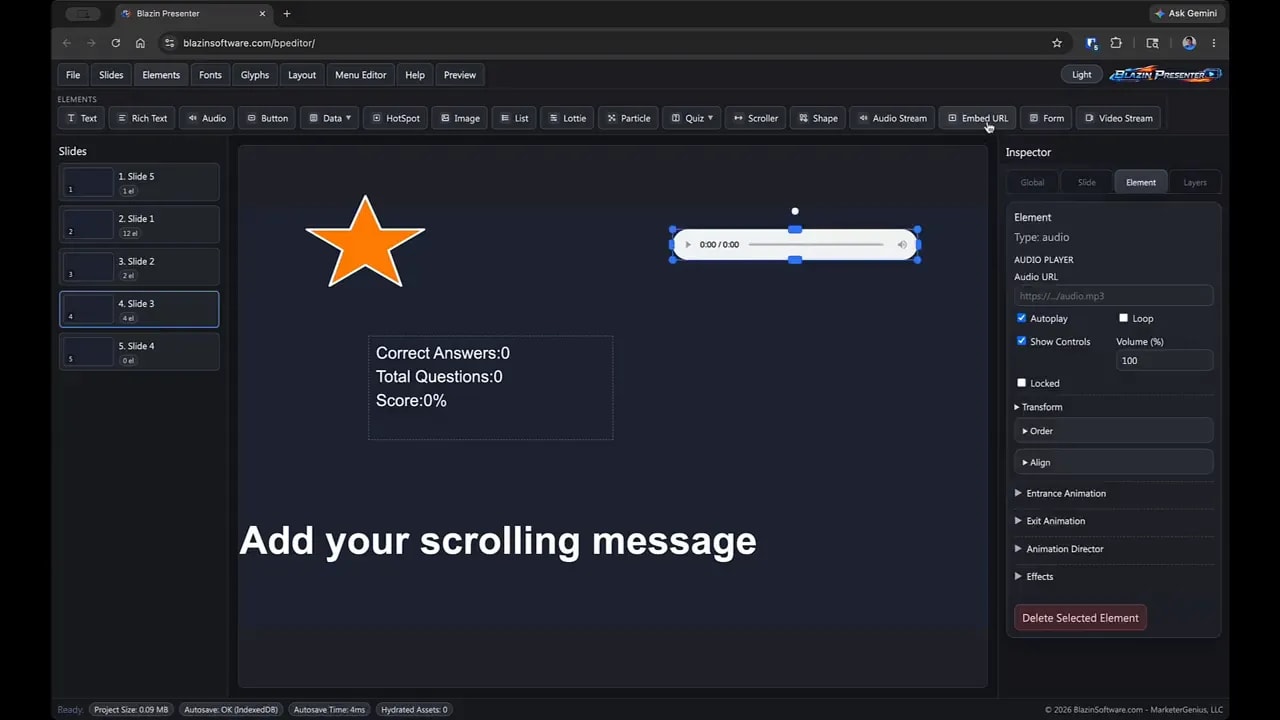
Audio Stream
This works like the audio player, except the source is hosted online. You paste the full URL of the remote audio file.
One important browser note: autoplay for audio is often restricted, especially on the first screen. A good workaround is to make the first slide a start screen with a button. Once someone interacts, later slides can autoplay more reliably.
Embed URL
If a website or service allows embedding, you can place that content directly inside your blazin presenter project. This can include embeddable forms or even YouTube content if you use the appropriate embed URL.
Forms
There is a built-in web form builder for more advanced use. You can create custom fields, define the submission target, and use it as part of your interactive content or workflow.
Video Stream
Blazin presenter intentionally avoids a standard upload-and-store video element because video files can make projects huge. Instead, you stream video from an online source by pasting the MP4 URL.
Browser restrictions apply here too. Muted autoplay often works, while autoplay with sound may not. That is a browser policy issue, not a blazin presenter bug.
Step 11: Manage fonts and use glyphs for visual variety
Fonts
Blazin presenter supports custom web fonts. You can upload individual fonts or even font packs. If you have TrueType fonts, you can convert them to web fonts first and then load them.
One smart detail here is that blazin presenter only exports the fonts you actually use. So even if you load a larger font pack into the editor, unused fonts do not bloat the final export.
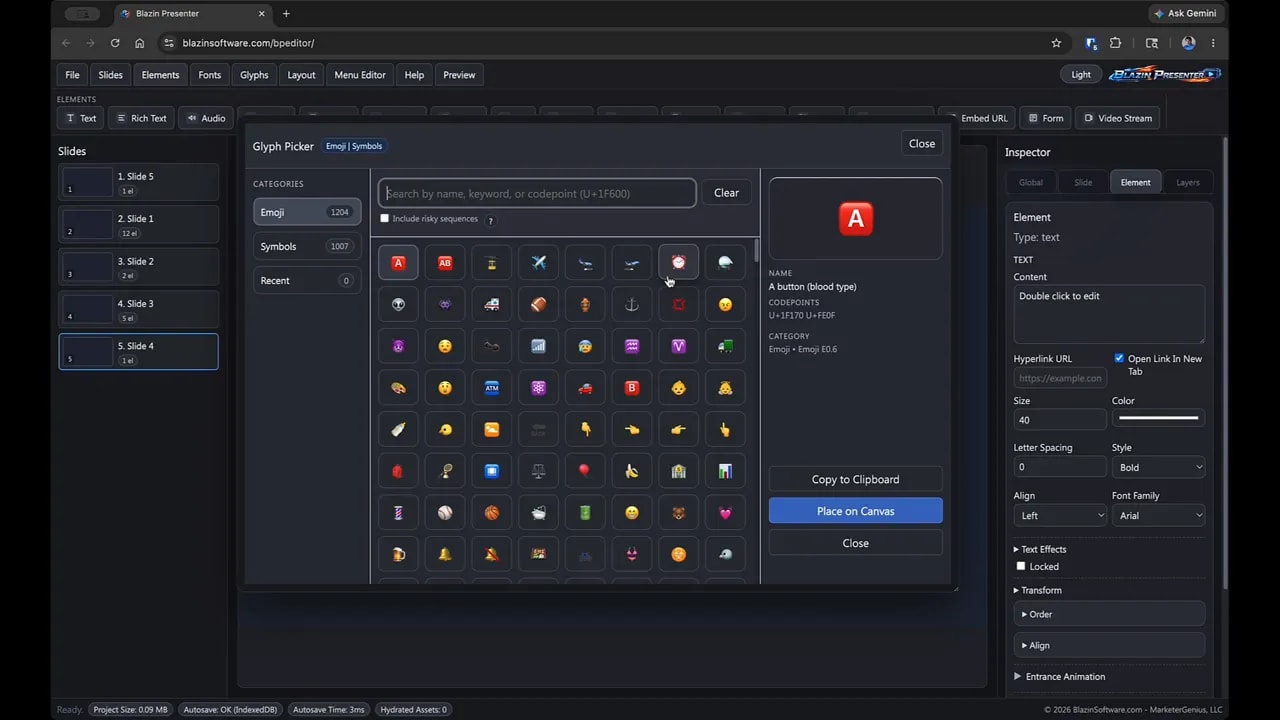
Glyphs and emojis
Glyphs are a quick way to add icons, symbols, and emoji-like visuals. There are thousands to choose from. These generally stay consistent across modern platforms, though they may look slightly different from one operating system to another.
For example, a plane is still a plane, even if one device renders it flatter and another renders it with more depth. The meaning stays stable, which is what matters.
Step 12: Customize your workspace with the layout menu
The Layout menu is simple but useful. It allows you to hide or show interface regions such as:
- The slide panel
- The timeline
If you need more canvas room while working on a slide, hide what you do not need. If you hide something and want it back, just return to the layout menu.
Step 13: Control navigation with the global menu editor
This is where blazin presenter starts acting less like ordinary presentation software and more like an application builder.
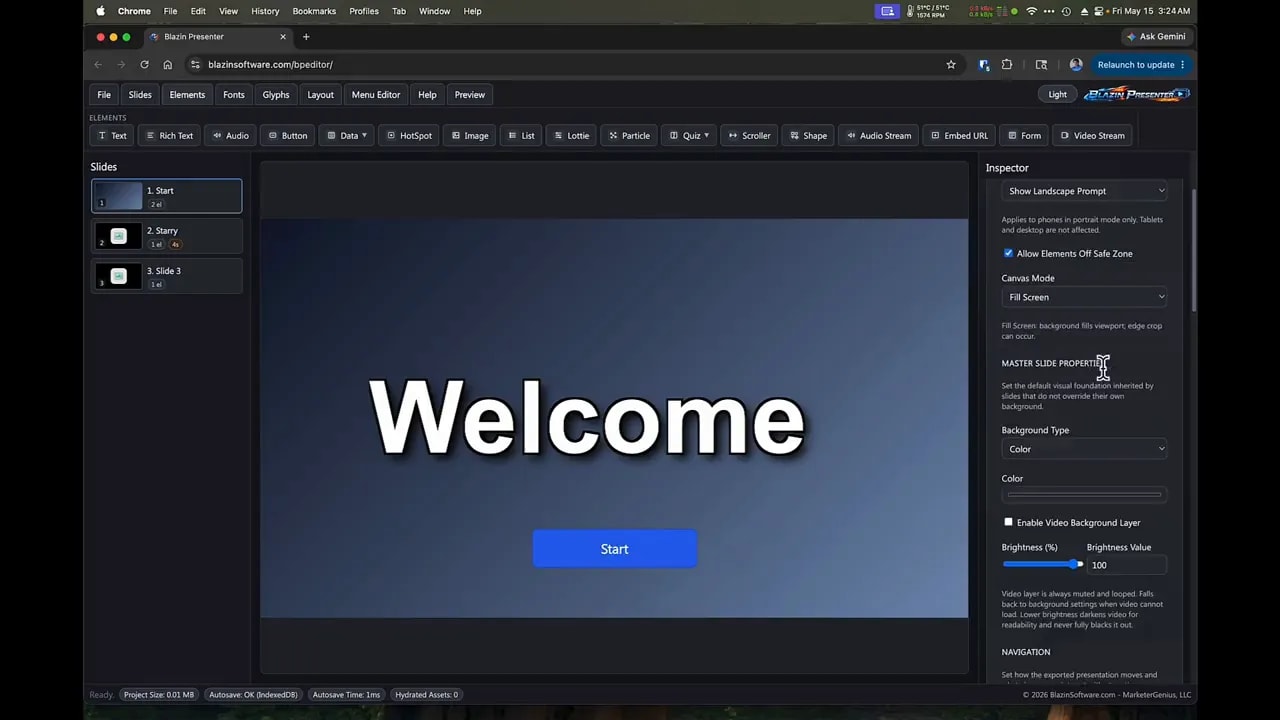
The Menu Editor, also called the Global Menu Editor, controls project-wide navigation behavior.
Navigation modes
Blazin presenter supports three main navigation rules:
- Free Navigation lets users move forward and backward with arrow keys and the space bar.
- Forward Only lets them move ahead but not return to earlier slides.
- Locked Manual Navigation disables normal keyboard slide navigation so movement only happens through buttons, hotspots, menus, timed slides, or quiz completion.
There is also an option to show or hide the default playback controls.
This is extremely useful in learning scenarios. If you do not want someone skipping through a lesson or bypassing a quiz, you can lock navigation and only provide the pathways you want.
Slide timing
Individual slides in blazin presenter can auto-advance after a certain amount of time. That can be used in any navigation mode. You can also show a visual countdown bar and optional label so the remaining time is visible.
This is handy for:
- Timed reading slides
- Digital signage loops
- Forced progression through brief content sections
Global menu structure
The menu editor lets you create:
- Slide links
- Submenus
- Website links through actions
A particularly smart feature is that slide links connect to a slide’s internal identity, not just its current number. So if you move or rename slides later, the link still works. That saves a lot of maintenance in larger blazin presenter projects.
Per-slide menu behavior
You can also control how the global menu behaves on specific slides. For example, you can:
- Force the menu to show on a slide
- Force the menu to hide on a slide
- Enable auto-hide after a few seconds
- Keep it visible until dismissed
This opens up some really strong use cases. You might let someone jump to chapters from the menu, then hide the menu while they work through a locked section, then show it again afterward.
That makes blazin presenter useful not just for teaching, but also for product demos, kiosks, guided walkthroughs, and interactive installations.
Step 14: Use preview and right-click shortcuts while you build
As you work, previewing often is the fastest way to understand how your choices feel in practice.
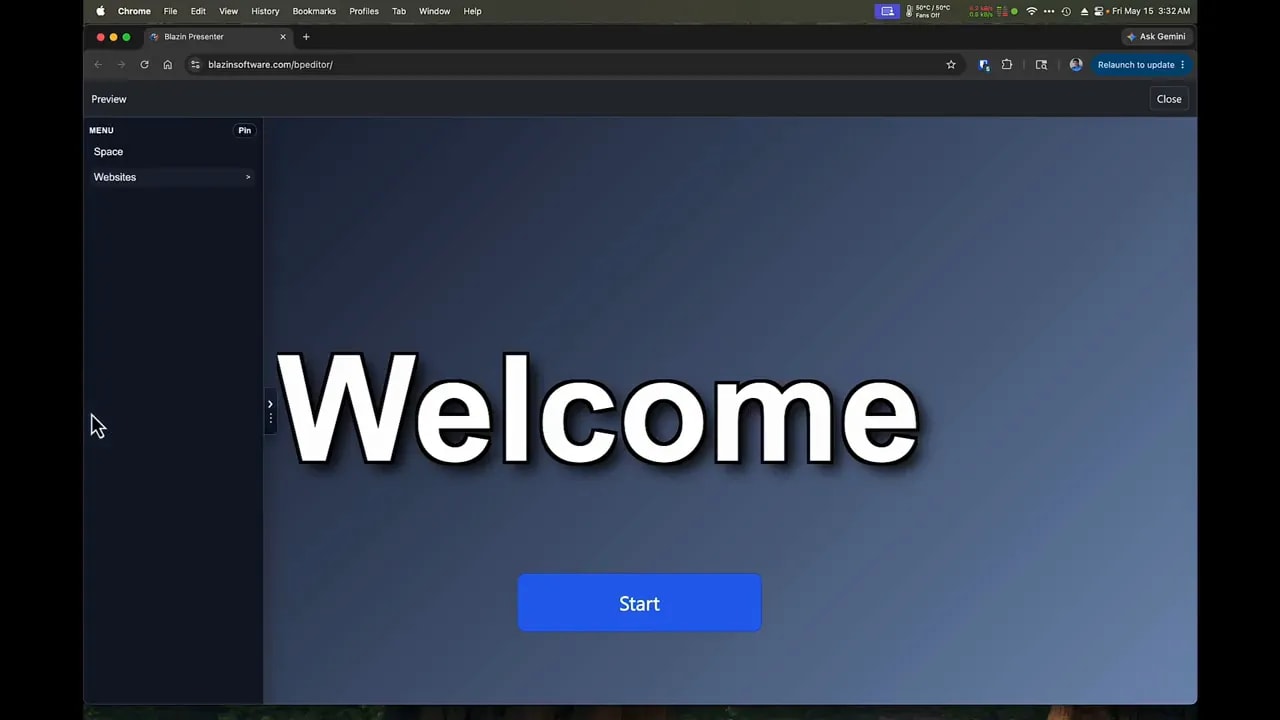
Blazin presenter gives you two main preview modes:
- Preview from Start
- Preview Current Slide
You can access these from the top menu, but there are also useful right-click shortcuts:
- Right-click the canvas to preview the current slide
- Right-click in the slide area to play from the start
That saves time, especially when testing buttons, hotspots, timed slides, quizzes, or menu behavior.
Step 15: Learn the built-in help system, shortcuts, and token features
The Help menu inside Blazin Presenter is worth exploring. It includes guidance for topics like audio, export options, fonts, and elements.
Keyboard shortcuts
The shortcuts section summarizes useful editing commands like undo, redo, duplicate, copy, and paste.
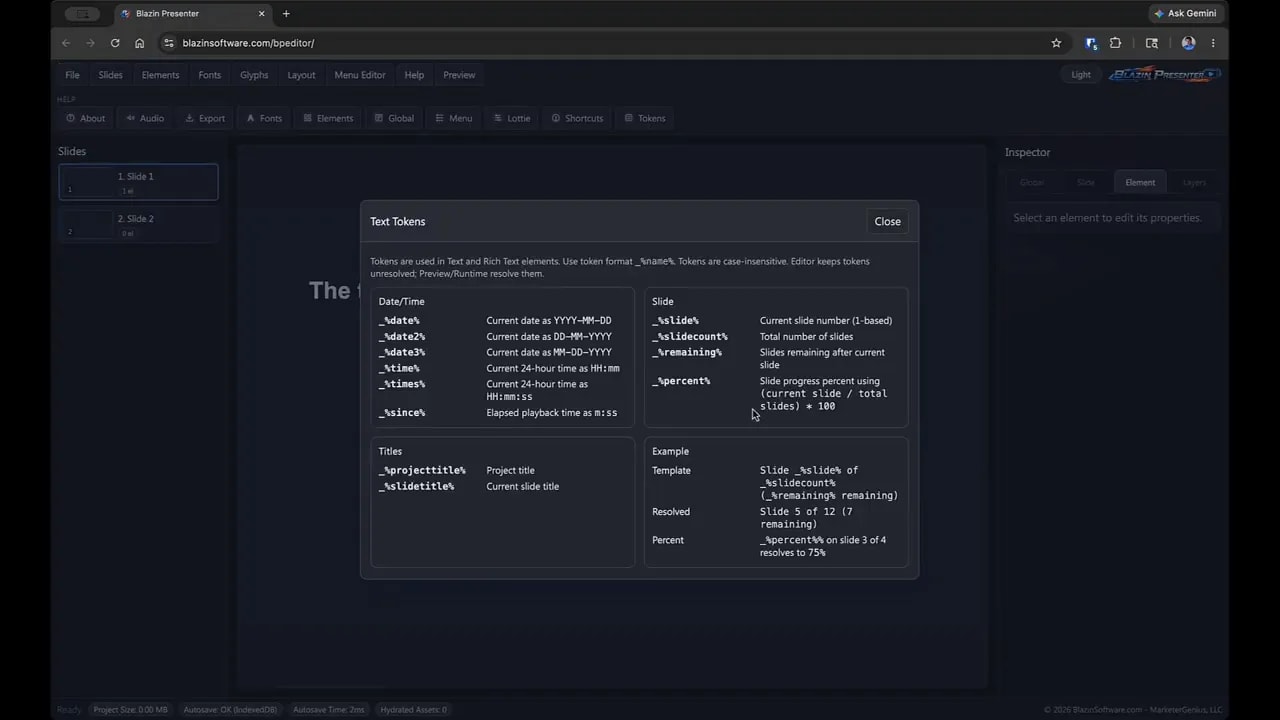
Tokens
Tokens are one of those features that can quietly become incredibly useful.
You can embed tokens into text so blazin presenter inserts dynamic information automatically. Examples include:
- Current time
- Date
- Project title
- Current slide title
- Slide percentage
- Slides remaining
These are great for digital signage, status displays, and dynamic project labeling. You can use slide names and project names to feed the token system, which makes organization and automation work together nicely.
Step 16: Understand where Blazin Presenter fits best
By the time you have gone through the editor once, the biggest takeaway is this: blazin presenter is not just for presentations.
It can be used for:
- Traditional presentations
- Interactive learning content
- Quiz-based training
- SCORM lessons for LMS platforms
- Digital signage
- Kiosk interfaces
- Mini websites and landing pages
- WordPress-hosted interactive content
- Offline HTML-based presentations
If you came in expecting something like a PowerPoint alternative, you are not wrong, but that is only one slice of it. Blazin presenter is really closer to a flexible multimedia authoring system that just happens to feel approachable.
FAQ
Is Blazin Presenter free to use?
Yes. Blazin presenter is presented as a freely available web-based multimedia editor. Some specialized versions, such as the SCORM-oriented version, add additional export capabilities for LMS use.
Does Blazin Presenter save my projects online?
No. Your work is local. Auto-save stores your work in the browser for recovery purposes, but if you want a real project file you need to save it so it downloads to your computer.
Can I move a Blazin Presenter project to another computer?
Yes. Saved project files include bundled assets such as images, fonts, and sounds, so you can move them to another machine and open them there.
What can I export from Blazin Presenter?
Depending on your version, you can export for online hosting, offline use, WordPress, and SCORM 1.2 for learning management systems.
Can Blazin Presenter run offline?
Yes. The offline export is designed specifically so projects can run locally in a browser without needing an internet connection or a separate executable application.
How many quizzes can I place on one slide?
You can only have one quiz element per slide in blazin presenter.
Does quiz scoring only work in the SCORM version?
No. Quiz scoring and score display work in regular blazin presenter projects too. The SCORM version is specifically for reporting that data to an LMS.
Can I use custom fonts in Blazin Presenter?
Yes. You can upload web fonts, and the system only exports the ones actually used in your project.
Can I make interactive menus and chapter navigation?
Yes. The global menu editor in blazin presenter allows slide links, submenus, website links, and per-slide menu visibility behavior.
Is blazin presenter only for presentation slides?
No. It can also be used for digital signage, training content, quizzes, kiosks, mini websites, WordPress content, and offline interactive projects.
Final thoughts
The first time you open blazin presenter, it can seem like there is a lot going on. That is true. But most of it is organized in a very practical way. File management is straightforward. Slides are easy to control. Elements cover everything from text and images to quizzes and forms. Navigation can be as open or as restricted as you need. And the global menu system adds a layer of structure that many tools simply do not offer.
If you are just starting, keep it simple:
- Create a few slides
- Add text, an image, and a button
- Preview often
- Try a quiz
- Experiment with navigation settings
- Save your project file locally
That is enough to start getting real traction. Once those basics click, blazin presenter opens up fast.